Caribou is here to make your job easier. Think of it as your daily workspace for staffing open shifts fast. We help you find the right caregivers for the right patients, quickly and smoothly. This article shows you how we detect open shifts, how we match the best caregivers, and how you can take action right from your dashboard.
Let’s get started!
1. View Open Shifts
To get started, log in to your Admin account and click the Shifts tab in the left-hand menu. Use the dropdown to select your name. This filters the list to show all patients with open shifts.
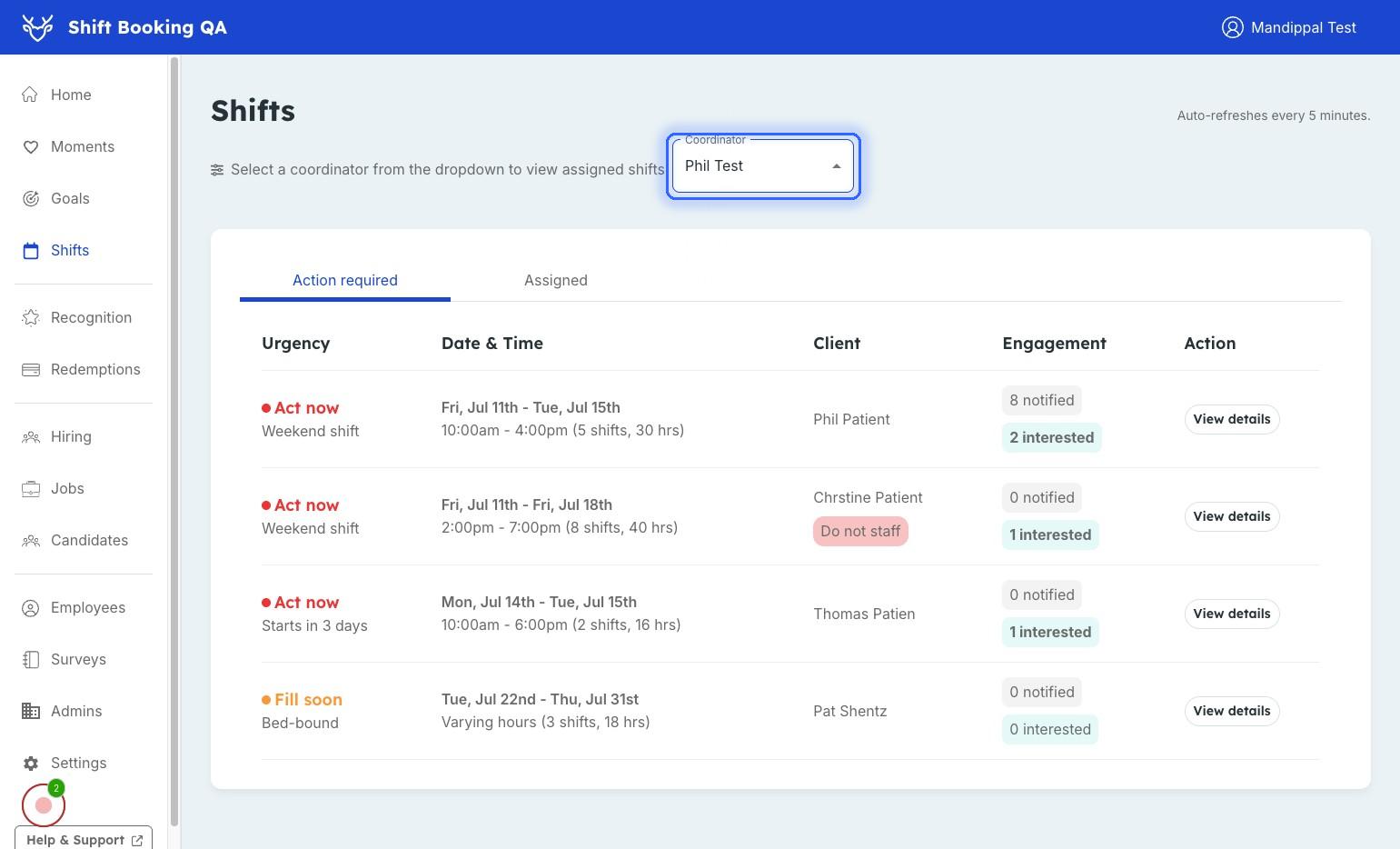
Click the “View details” button to see patient information, caregiver recommendations, and shift specifics.
2. Reviewing Patient Details
Every 5 minutes, we sync open shift data from your scheduling software. For each open shift, you’ll see:
- Shift date and time
- Location (city and ZIP code)
- Required discipline (HHA, LPN, etc.)
- Patient language preferences
- Home environment notes (e.g. pets)
- Care needs (e.g. bed-bound, Hoyer lift)
- Gender preferences and alerts
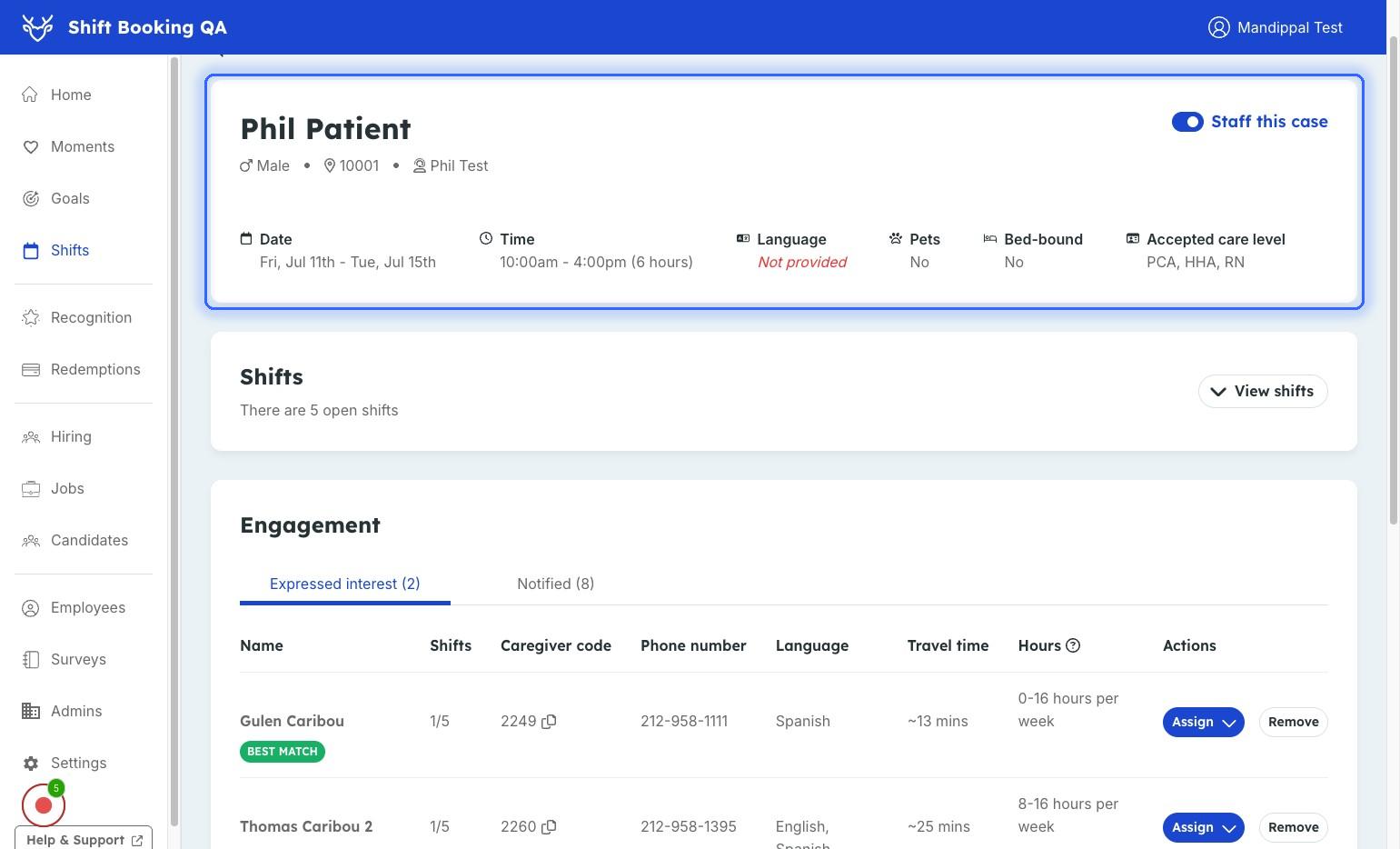
You can click “View shifts” to expand and see all open shifts for that patient.
3. Recommended Caregivers
We automatically surface caregivers best suited for the shift. Our matching logic considers:
- Availability during the shift
- Care experience (e.g. Hoyer lift)
- Language match
- Proximity and travel preferences
- Past experience with the patient
- If the caregiver is under-scheduled
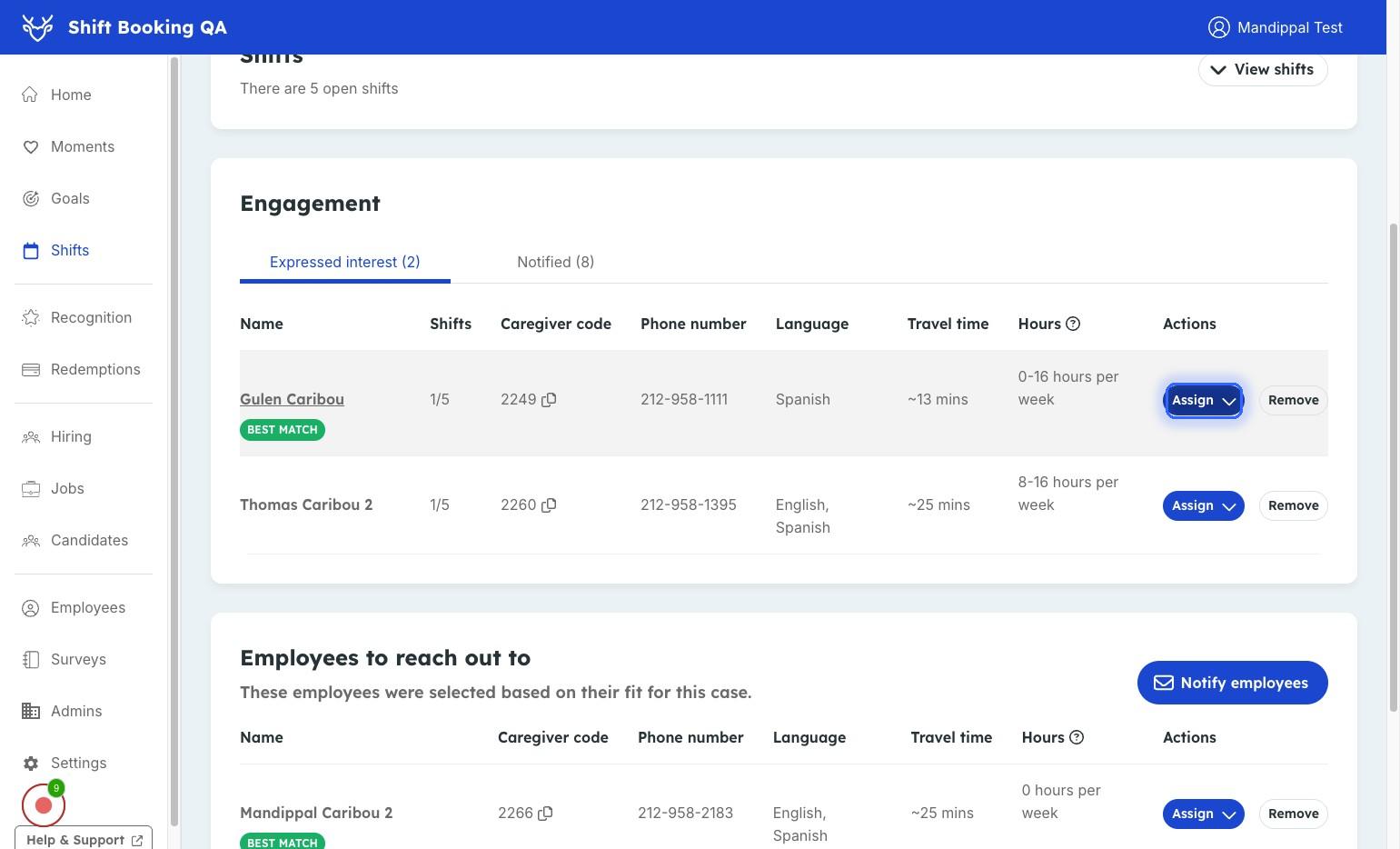
You'll also see:
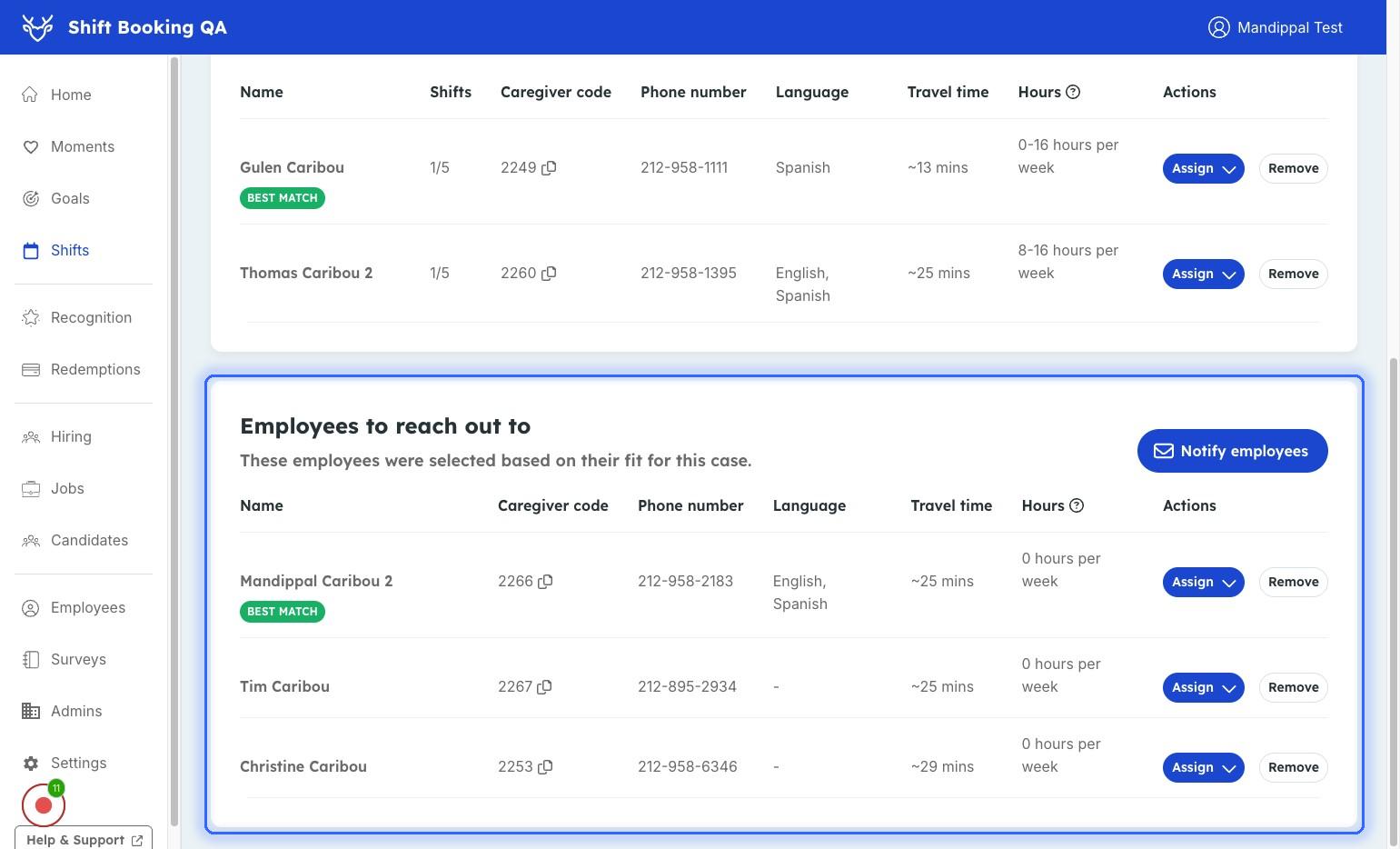
- A “Remove” button to exclude caregivers from this shift (this hides the shift from their app)
- A weekly hours column to help you balance caregiver workloads
4. Availability & Preferences
We cross-check caregiver availability and personal preferences:
- Availability windows
- Max commute distance
- Willingness to work with pets
- Gender-specific requests
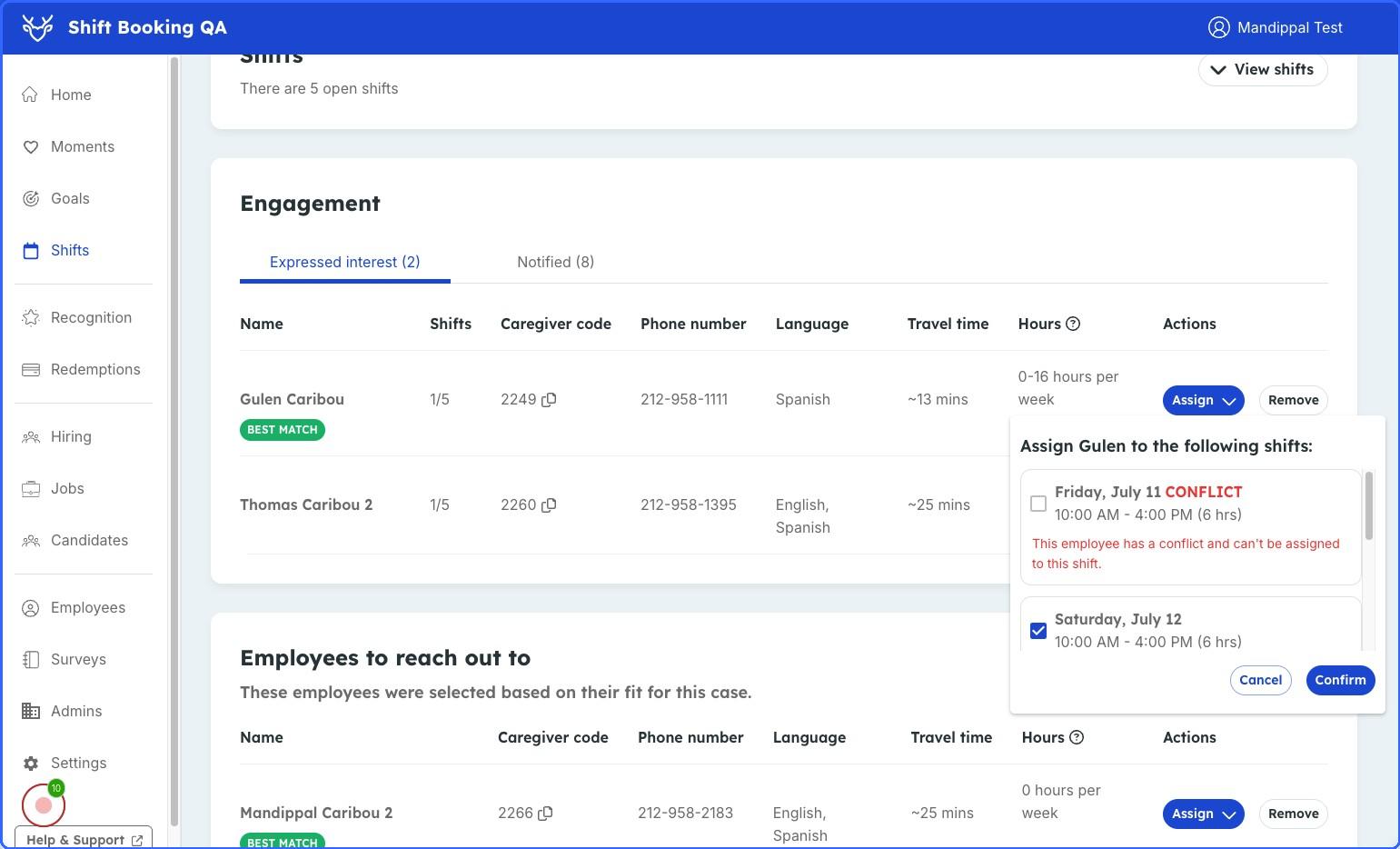
If there are any conflicts (like being unavailable at shift time), you’ll see a note explaining why a caregiver isn’t eligible.
5. Reaching Out for Urgent Shifts
Caregivers are already being notified periodically about shifts that match them well, so in most cases, no action is needed.
However, if you are looking to get a specific shift filled quicker, you can manually notify the recommended caregivers:
- Click Broadcast
- Click Confirm & Notify
6. Managing Interest
Once notified, caregivers who are interested in a shift will show up under the Notified tab.
From here, you can:
- Review how many shifts they’re interested in
- Click Assign to assign them into that specific shift
7. Confirmed Shifts.
After a caregiver is assigned, the shift will soon move to a new Confirmed tab, giving you a clear view of what's booked and what’s still open.
Making the Shifts tab part of your daily routine means faster fills, fewer gaps, and better care! Have questions or something not working as expected? Reach out to our support team at shiftbooking@caribou.care, we're always happy to help!