Note: All patient information shown in screenshots and video walkthrough are demo patients strictly for this help article.
Video Walkthrough:
Shift Assign Confirmation automatically asks caregivers to acknowledge newly assigned shifts. This removes manual back-and-forth and gives coordinators a reliable record of who confirmed what, and when.
How it works
-
Assign the shift from your dashboard
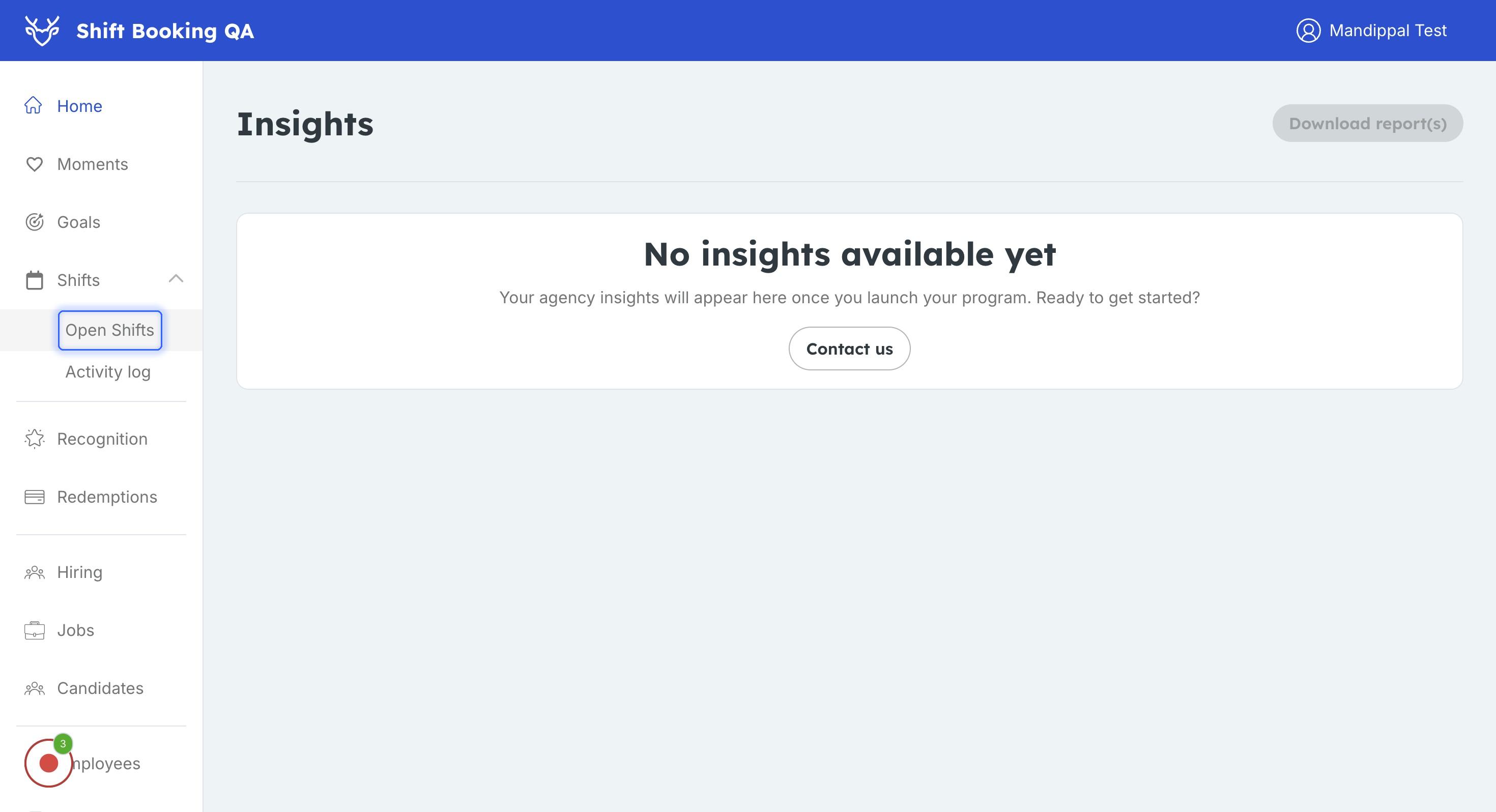
- Click Shifts > Open Shifts
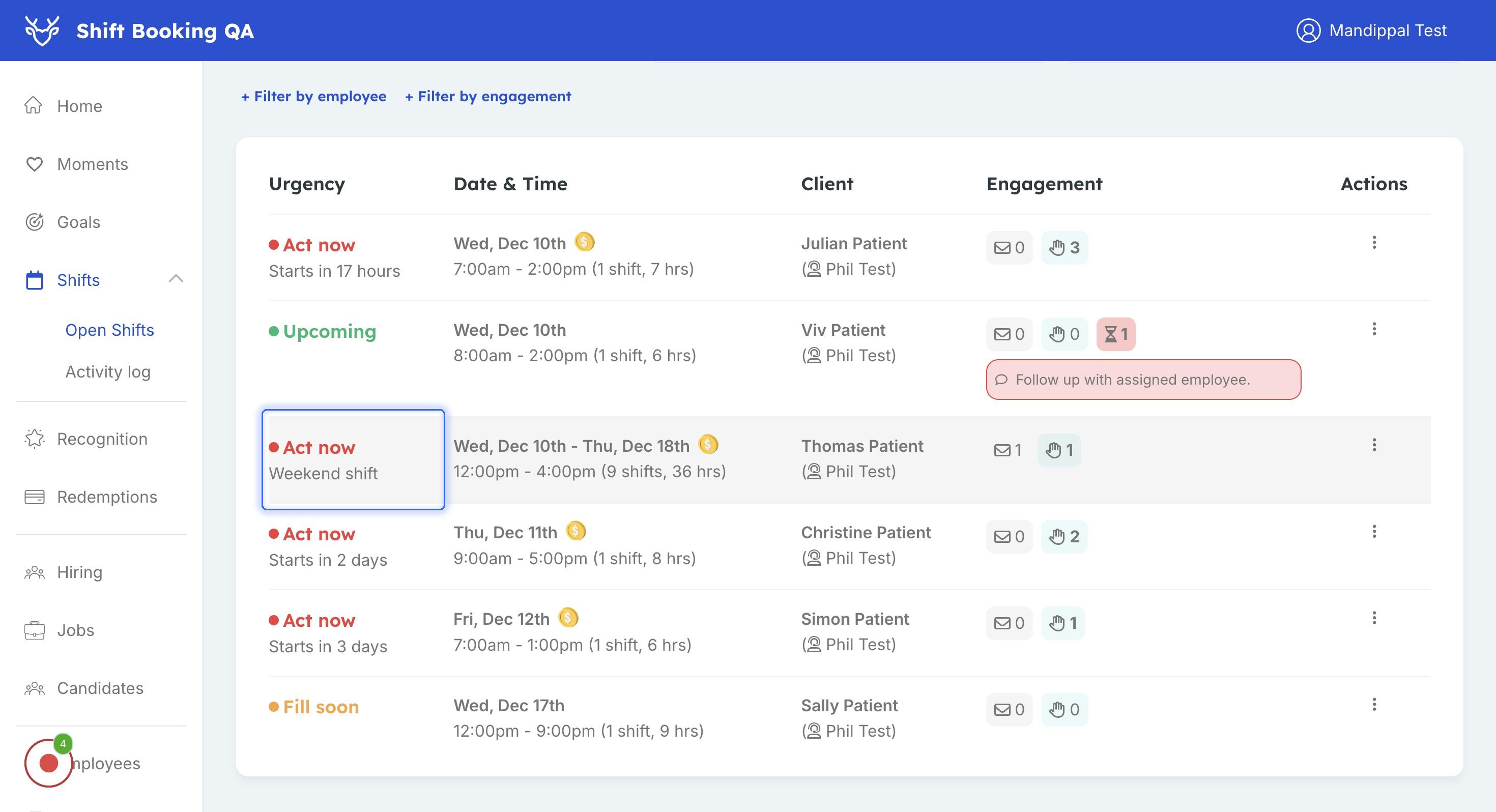
- Select the shift
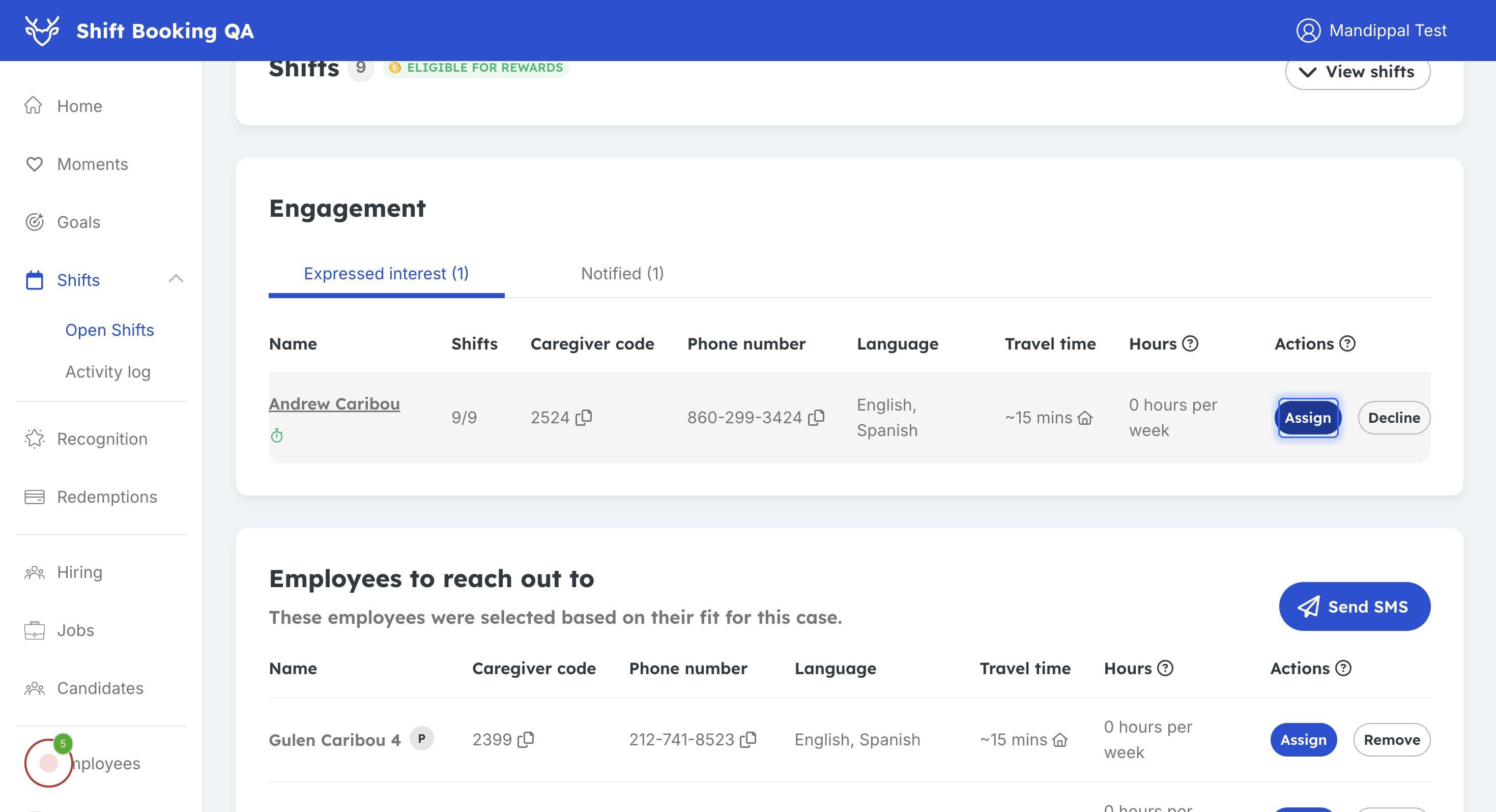
- Click Assign:
- Click Shifts > Open Shifts
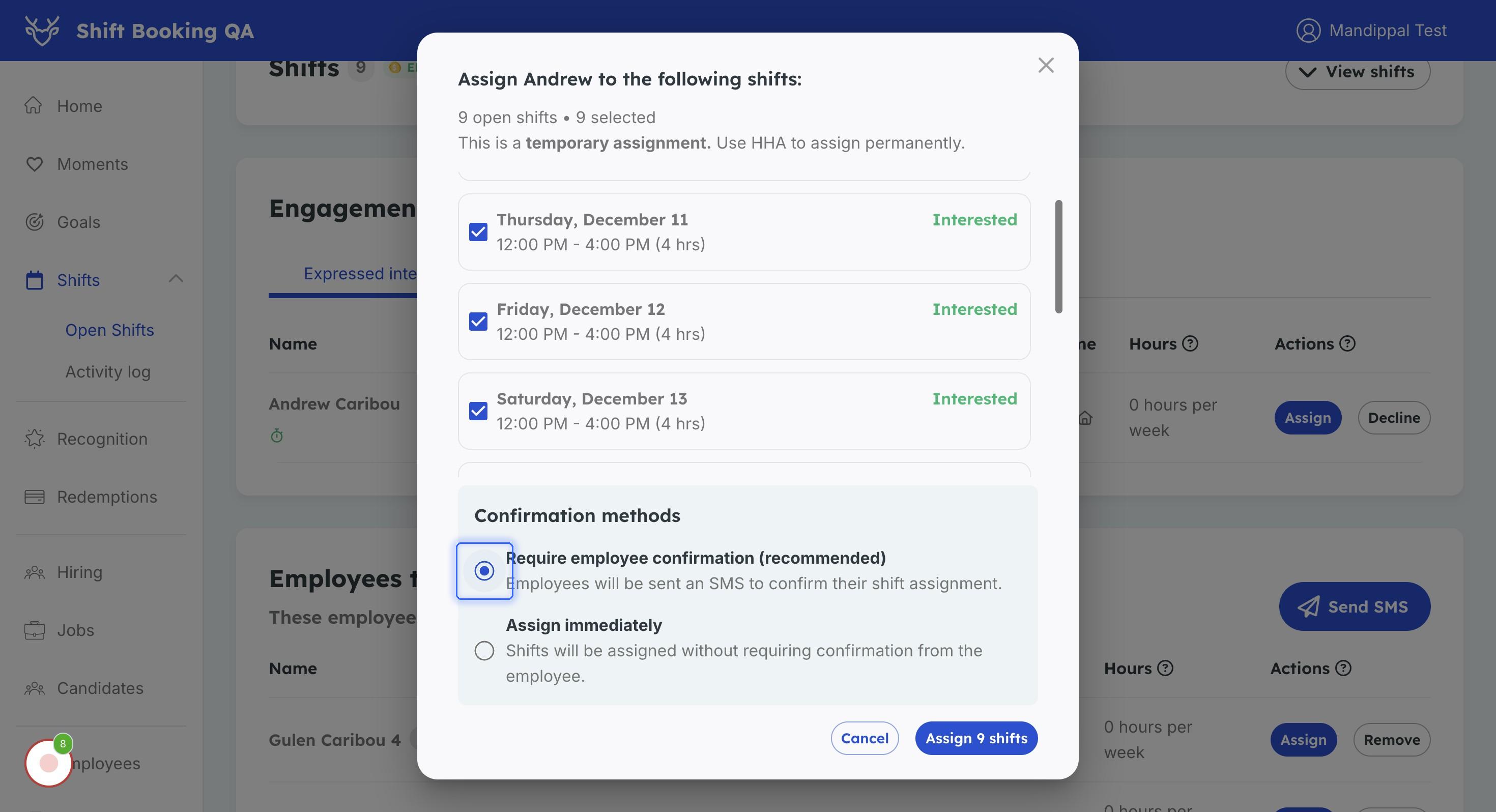
- Select confirmation method:
- Require employee confirmation: Sends an SMS/email prompting the caregiver to confirm.
-
Assign immediately: Automatically marks the shift as confirmed.
-
Monitor confirmation status in the Open Shifts page:
Confirmation statuses
- Pending (orange icon): Awaiting response
- Urgent (red icon): Shift coming up soon, no response yet
- Confirmed: Confirmed shifts automatically disappear from the main Open Shifts view
What happens after confirmation?
- Confirmed shifts move out of Open Shifts view automatically
- Full audit trail appears in Activity Log with timestamp
Coordinators can manually mark a shift as confirmed (e.g., after a phone call).
What do caregivers see
When a shift is assigned:
- The caregiver receives both an SMS and an email with shift details.
- Each message includes a confirmation link.
- The caregiver taps the link, reviews the details, and confirms the assignment.
- The confirmation is recorded instantly in the Audit Log.
Note: Only shifts assigned through the Caribou platform can be confirmed. External assignments cannot be acknowledged through this feature.
Help caregivers succeed
It’s important that caregivers know what to do after confirming.
We recommend reminding them:
- Confirmation does not include visit details such as address or care plan
- They must open HHA to access care instructions
- If unsure, they should call their coordinator to avoid missed visits
Pro-tip: You can easily access the shift a caregiver is referring to in the Activity log in your admin dashboard!